| 1. Goals | ||
|---|---|---|
 | Chapter 2. Unix |  |
| 1. Goals | ||
|---|---|---|
| | Chapter 2. Unix | |
Goals
Unix is an operating system made by programmers to programmers.
Easy to use
Powerful
Extensible
Easy to understand
Open
Elegant
Multitasking and multiuser
Logging
Logging in. At login time, you'll see a prompt resembling the following:
java login: larry
Password:
Logging out.
/home/larry# exit
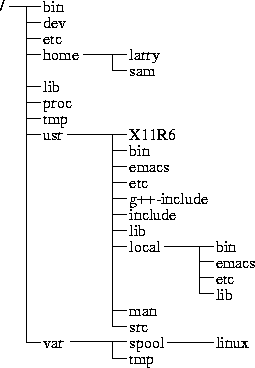
The directory tree.
In particular, each user has a home directory, which is the directory set aside for that user to store his files.
The current working directory.
At any moment, commands that you enter are assumed to be relative to your current working directory. You can think of your working directory as the directory in which you are currently ``located''.
Referring to home directories.
/home/larry# more ~/papers/history-final
/home/larry# more /home/larry/papers/history-final
First Steps
Moving around.
cd directory
Looking at the contents of directories.
/home/larry# ls /etc
Images    ftpusers    lpc     rc.new   shells
adm       getty       magic   rc0.d    startcons
bcheckrc  gettydefs   motd    rc1.d    swapoff
brc       group       mount   rc2.d    swapon
brc~      inet        mtab    rc3.d    syslog.conf
/home/larry#
For MS-DOS users: Filenames can be longer than 8 characters, and can contain periods in any position. You can even use more than one period in a filename. Creating new directories.
/home/larry# mkdir foo
/home/larry# ls -F
Mail/
foo/
letters/
papers/
/home/larry# cd foo
/home/larry# ls
/home/larry#
Copying files.
/home/larry/foo# cp /etc/termcap .
/home/larry/foo# cp /etc/shells .
/home/larry/foo# ls --F
shells    termcap
/home/larry/foo# cp shells bells
/home/larry/foo# ls --F
bells     shells     termcap
/home/larry/foo#
Moving files.
/home/larry/foo# mv termcap sells
/home/larry/foo# ls --F
bells    sells    shells
/home/larry/foo#
Deleting files and directories.
/home/larry/foo# rm bells sells
/home/larry/foo# ls --F
shells
/home/larry/foo#
Looking at files.
/home/larry/foo# more shells
Getting online help.
/home/larry/foo# man ls
<the manual page for ls displayed>
Types of Shells
Bourne shell - /bin/sh - syntax like the original shell on early UNIX systems
C shell - /bin/csh - syntax similar to the C language
Wildcards.
* specifies any character or string of characters in a file name.
/home/larry# ls *o*
frog    joe
/home/larry#

/home/larry# ls *
frog   joe   stuff
/home/larry#
? expands to only a single character.
/home/larry# ls j?e
joe
/home/larry# ls f??g
frog
/home/larry# ls ????f
stuff
/home/larry#
This is important: a command never sees the "*" or "?" in its list of parameters.
The shell expands the wildcard to include all filenames that match: /home/larry# ls *o* is expanded to /home/larry# ls frog joe
Hidden files
/home/larry# ls -a
.     ..     .bash_profle     .bashrc     frog     joe     stuff
/home/larry#
Redirecting input and output.
/home/larry/pappers# sort items > shopping-list
/home/larry# cat shopping-list
apples
bananas
carrots
/home/larry/pappers#
/home/larry/pappers# sort < items
apples
bananas
carrots
/home/larry/pappers#
Using pipes
/home/larry/pappers# ls | sort -r
notes
masters-thesis
history-final
english-list
/home/larry/pappers#
/home/larry/pappers# ls /usr/bin | more
File Permissions
Concepts of file permissions
Permissions fall into three main divisions: read, write, and execute. These permissions may be granted to three classes of users: the owner of the file, the group to which the file belongs, and to all users, regardless of group.
/home/larry/foo# ls -l stuff
-rw-r--r--   1 larry     users     505 Mar 13 19:05  stuff
/home/larry/foo#

-rwxr-xr-x   The owner of the file may read, write and execute the file. Users int the
             file's group and all other users may read and execute the file.

-rw-------   The owner of the file may read and write the file. No other user can access the file.
Changing permissions.
chmod is used to set the permissions on a file. Only the owner of a file may change the permissions on that file. The syntax of chmod is
chmod {a,u,g,o}{+,-}{r,w,x} filenamesBriefly, you supply one or more of all, user, group, or other. Then you specify whether you are adding rights (+) or taking them away (-). Finally, you specify one or more of read, write, and execute:
chmod a+r stuff
      Gives all users read access to the file.

chmod +r stuff
      Same as above - if none of a, u, g or o is specified, a is assumed.

chmod og-x stuff
      Remove execute permission from users other than the owner.

chmod u+rwx stuff
      Let the owner of th file read, write and execute the file.

chmod o-rwx stuff
      Remove read, write and execute permissions from users other than the owner and users in the file's group.
Managing file links
Hard links.
/home/larry$ ls -i foo
22192 foo
/home/larry#
Here, foo has an inode number of 22192 in the file system. You can create another link to foo, named bar, as follows:
/home/larry# ln foo bar
/home/larry# ls -i foo bar
22192 bar   22192 foo
Symbolic links.
/home/larry# ln -s foo bar
You will create a symbolic link named bar that points to the file foo. If you use ls -i, you'll see that the two files have different inodes, indeed.
/home/larry# ls -i foo bar
22195 bar   22192 foo
/home/larry#
Job control
Jobs and processes.
Job control lets you control multiple running commands, or jobs, at once. To see the processes:
/home/larry# ps
PID   TT   STAT   TIME   COMMAND
 24    3   S       0:03   (bash)
161    3   R       0:00   ps
PID listed in the first column is the process ID, a unique number given to every running process
COMMAND, is the name of the running command
Backgrounding and killing jobs
One way to put a process in the background is to append an ``&'' character to the end of the command.
/home/larry# yes > /dev/null &
[1] 164
/home/larry#

The "[1]" represents the job number for the yes process.
The "164" is the process ID, or PID.
/home/larry# jobs
[1]+  Running                  yes >/dev/null  &
/home/larry#
To terminate the job, use the kill command
/home/larry# kill %1
When identifying the job with the job number, you must prefix the number with a percent (``%'') character. Checking on it:
/home/larry# jobs
[1]+ Terminated       yes >/dev/null
/home/larry#

/home/larry# kill 164
is equivalent to
/home/larry# kill %1
Customizing your environment
Creating new command with scripts.
For example, the three commands:
/home/larry# cat chapter1 chapter2 chapter3 > book
/home/larry# wc -l book
/home/larry# lp book
They concatenates the files chapter1, chapter2, and chapter3 and places the result in the file book. The second command displays a count of the number of lines in book, and the third command lp book prints book. Create a shell script to perform the same action (name it makebook):
#!/bin/sh
# A shell script to create and print the book
cat chapter1 chapter2 chapter3 > book
wc -l book
lp book
Make it runnable:
/home/larry# chmod u+x makebook
Use it !
/home/larry# makebook
< run all the commands in the script>
Shell variables and the environment.
A shell lets you define variables, as do most programming languages. A variable is just a piece of data that is given a name. The PATH environment variable. The shell uses the environment variable PATH to locate executable files for commands you type. For example, your PATH variable may be set to
/bin:/usr/bin:/usr/local/bin:
This is a list of directories for the shell to search, each directory separated by a ``:''. When you use the command ls, the shell first looks for /bin/ls, then /usr/bin/ls, and so on.
Shell initialization scripts. There are a number of scripts that the system uses for certain purposes. The most important of these are initialization scripts, which are scripts executed by the shell when you log in.
Bash:
/etc/profile :set up by the system administrator and executed by all bash users at login time
$HOME/.bash_profile : executed by a login bash session
$HOME/.bashrc : executed by all non-login instances of bash
Csh:
/etc/csh.login : executed by all tcsh users at login time
$HOME/.cshrc : executed at login time and by all new instances of csh
$HOME/.login : executed at login time, following .cshrc
| |  | |
| Chapter 2. Unix |  | 2. Memory Management |